A corporate messenger with a separate server for each company
Chats, calls and tasks for the people in one organization. Every company gets a separate server with its own database, files and address. Nobody gets an account until the company approves their request.
Or in the app: tap “Connect your company” on the first screen.
A closed environment
Separate server
You get an address like code.g.vea.ru. The database and files on that server are used only by your company and aren't shared with other customers.
Only your people
There's no open sign-up. Employees get an invitation at their work email. If the company allows it, they can also send a request themselves. A moderator looks at every request and approves or rejects it.
No passwords
You sign in with a code sent to your work email. Every new sign-in is reported to all your devices. On a new device, secret chats and calls start working once it's confirmed from a device you already trust. If you can't reach a trusted device, a new key is created and your contacts see a warning.
Admin panel
This is where administrators send invitations, assign roles, block accounts and check the audit log.
Encryption
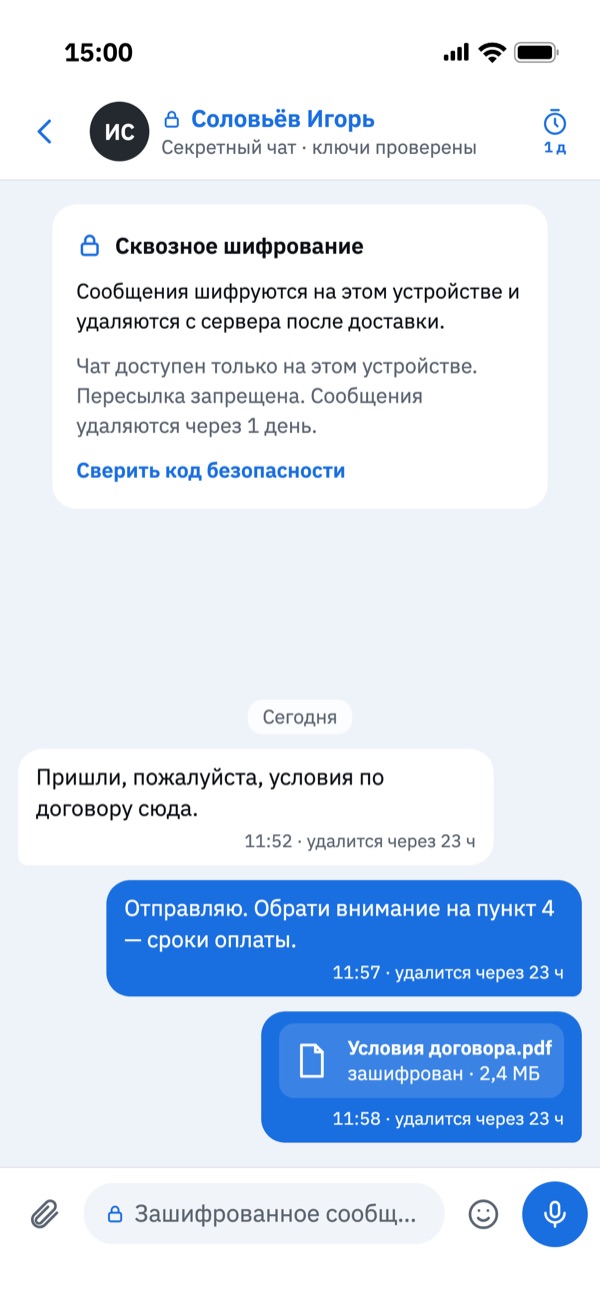
Secret chats
Messages are end-to-end encrypted on the device with the MLS protocol (OpenMLS library). The server can't read them, and neither can administrators. A secret chat lives on one device, forwarding is disabled, and you can set a timer so messages delete themselves.
Calls
Audio and video are encrypted, and call keys are bound to the keys of both devices. You'll see a code on the call screen. Read it out to each other. If it's the same on both ends, nobody is in the middle.
Regular chats, groups and channels
They are stored on the company server, so search and history work on every device. They're protected by TLS in transit and disk encryption on the server. Push notifications contain no message text and no names.
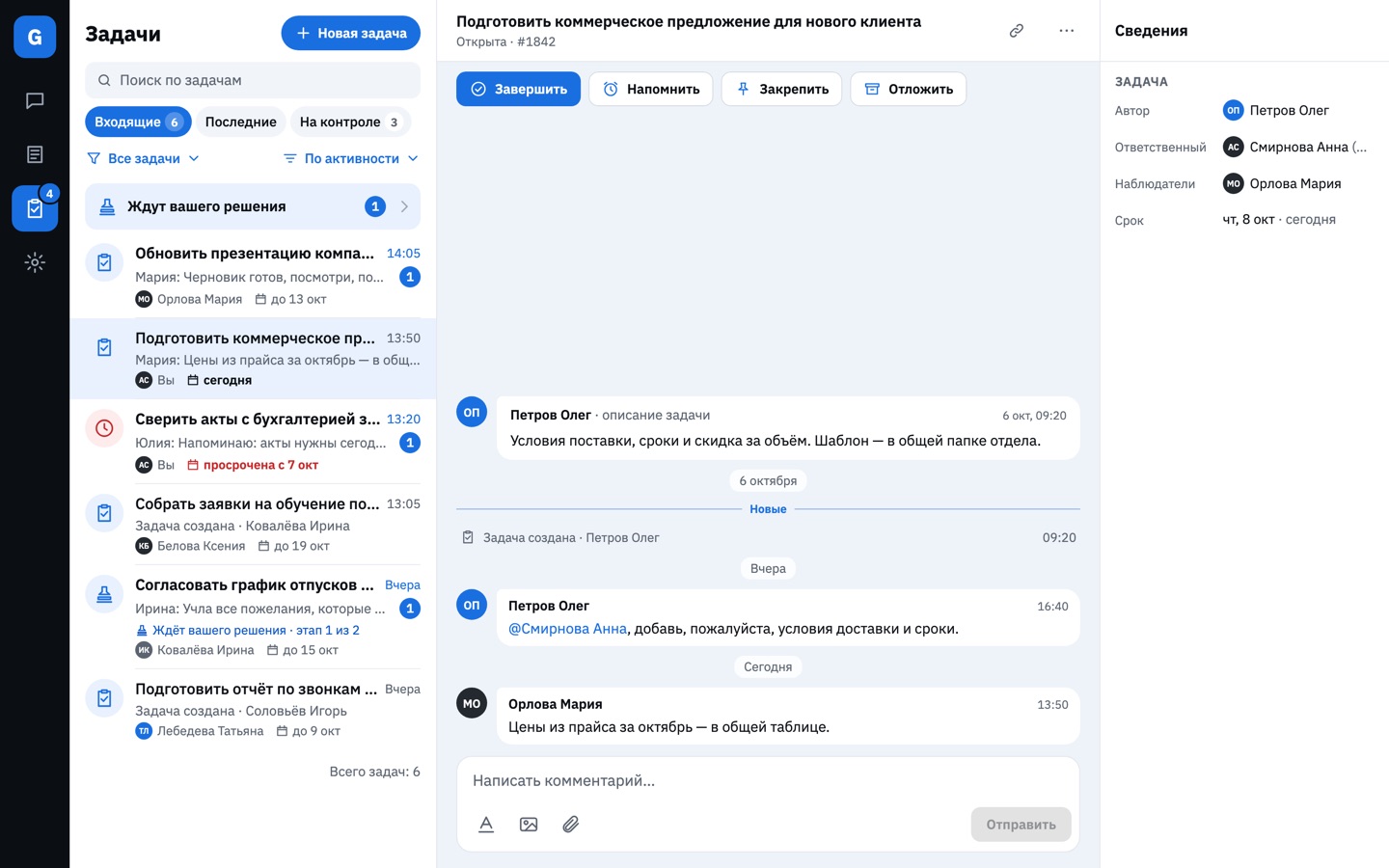
Tasks: an optional module
The company administrator turns the module on if you need it.
- Create a task straight from a message. The task keeps a link back to it.
- A task has an assignee and observers. You can add a due date, a reminder and repeats.
- Approval can take several stages: approvers sign off on the task or on its result.
- Inbox has all your open tasks except the ones you snoozed. A snoozed task comes back when someone comments or it's due.
- Managers see the tasks of the people who report to them.
Also included
- Direct chats, groups and channels
- Replies, reactions, mentions, pinned messages
- Voice messages, photos, videos and files up to 500 MB
- A news feed with polls and comments
- A staff directory you can filter by department
- Content reports and moderation
- Apps for iPhone, iPad, Mac, Android and Windows
- A web version, without secret chats and calls
Who messenger G is for
Any organization that needs a messenger for its staff can send a request.
It fits if
- you don't want staff conversations sitting in a shared cloud messenger;
- you need secret chats and calls that even the server administrator can't read or listen in on;
- you'd rather assign tasks in the same place where you discuss the work.
Pricing
On request
For corporate clients: from $1,000 per month.
We'll name the exact price once we've talked about your company.
Send a requestHow to get started
-
Request
Use the “Send a request” button and fill in the form. It asks for the organization's name, country, registration number and number of employees. We also need a contact person (a work email on the organization's domain and a phone number) and the company code you'd like. A confirmation code will arrive at that email. Enter it, and your request is sent. In the app, the same form opens with the “Connect your company” button on the first screen.
-
Conversation
We check the organization's details. Then we talk through what you need, answer your questions and tell you the price.
-
Server
We launch a server with your company code. The contact person gets the server address and an administrator invitation. After that the administrator invites employees, and they sign in with the company code and their work email.